Vedaansh॥ श्री गणेशाय नमः ॥
WorkspaceTodayMy Charts
Consult
Astro DetailsPlanetsDashaDasha InterpretationHouseYogasInterpretationStellar (KP)
Readings
RelationshipCareerDosha & UpayTattva PredictionNaamkaranSolar ReturnNatal Panchang
Divisional Charts
Navamsha (D9)Chaturthamsha (D4)Saptamsha (D7)Dashamsha (D10)Dwadashamsha (D12)Drekkana (D3)Nakshatramsha (D27)
Strength & Analytics
AshtakavargaShadbalaBhava BalaVimsopaka
Transit
Live TransitForecastMoon PassagesCosmic RoadmapEclipsesSade SatiAspectsBi-wheelCalendar
Jaimini AstrologyNadi AstrologyLal KitabAstro VastuAstroCartographySarvatobhadra ChakraMuhurta FinderPrashnaVedic NumerologyKundali Matching
Birth Star
ProfilePlanetsStar LordsSensitive DegreesGandmool
Chakras
Nadi NakshatrasNavtaraTaramandalLife Journey
Transits
Slow TransitsKota ChakraStar Birthday
Timing
Best DaysMuhurtaPanchakaLattaGhatak
Guidance
CompatibilityCareerHealthRemediesName Letters
Daily PanchangMonthly Calendar
Pricing
Dash
Sign in
Vedaansh॥ श्री गणेशाय नमः ॥
Sign in
WorkspaceTodayMy Charts
Astro DetailsPlanetsDashaDasha InterpretationHouseYogasInterpretationStellar (KP)
RelationshipCareerDosha & UpayTattva PredictionNaamkaranSolar ReturnNatal Panchang
Navamsha (D9)Chaturthamsha (D4)Saptamsha (D7)Dashamsha (D10)Dwadashamsha (D12)Drekkana (D3)Nakshatramsha (D27)
AshtakavargaShadbalaBhava BalaVimsopaka
Live TransitForecastMoon PassagesCosmic RoadmapEclipsesSade SatiAspectsBi-wheelCalendar
Jaimini AstrologyNadi AstrologyLal KitabAstro VastuAstroCartographySarvatobhadra ChakraMuhurta FinderPrashnaVedic NumerologyKundali Matching
Nakshatra
Daily PanchangMonthly Calendar
Tools
GuidesApp GuideCRM / ClientsRequest a Feature
Account
Install AppAboutPricing
+ New Consultation
App Guide
  • Getting started
    • Getting started
    • Entering birth details
    • Finding your way around
    • Creating an account and signing in
  • The Workspace
    • Workspace overview
    • Reading the charts
    • Chart settings (⚙) in depth
    • Transit Overlay
    • Planetary Details table
    • Today's Timeline, Active Houses and Dasha Insight
    • Panels below the charts
  • Your chart
    • Dashas, divisional charts and analysis
    • Today's reading
  • Life areas
    • Relationship and marriage
    • Career and profession
    • Dosha and Upay
    • Kundali Milan (matching)
  • Timing and calendars
    • Transits (Gochar)
    • Panchang and calendar
    • Muhurta finder
    • Nakshatra tools
  • Advanced tools
    • Jaimini, Nadi, Vastu, AstroCartography and SBC
    • Lal Kitab
    • Prashna (horary)
    • Vedic numerology
  • Account, saving and plans
    • Saving charts and My Charts
    • Sharing, PDF and email
    • Client CRM (Platinum)
    • Account settings
    • Plans and billing
All guides
  • Getting started
    • Getting started
    • Entering birth details
    • Finding your way around
    • Creating an account and signing in
  • The Workspace
    • Workspace overview
    • Reading the charts
    • Chart settings (⚙) in depth
    • Transit Overlay
    • Planetary Details table
    • Today's Timeline, Active Houses and Dasha Insight
    • Panels below the charts
  • Your chart
    • Dashas, divisional charts and analysis
    • Today's reading
  • Life areas
    • Relationship and marriage
    • Career and profession
    • Dosha and Upay
    • Kundali Milan (matching)
  • Timing and calendars
    • Transits (Gochar)
    • Panchang and calendar
    • Muhurta finder
    • Nakshatra tools
  • Advanced tools
    • Jaimini, Nadi, Vastu, AstroCartography and SBC
    • Lal Kitab
    • Prashna (horary)
    • Vedic numerology
  • Account, saving and plans
    • Saving charts and My Charts
    • Sharing, PDF and email
    • Client CRM (Platinum)
    • Account settings
    • Plans and billing
App Guide/The Workspace

Workspace overview

A map of the main chart screen and what every button at the top does.
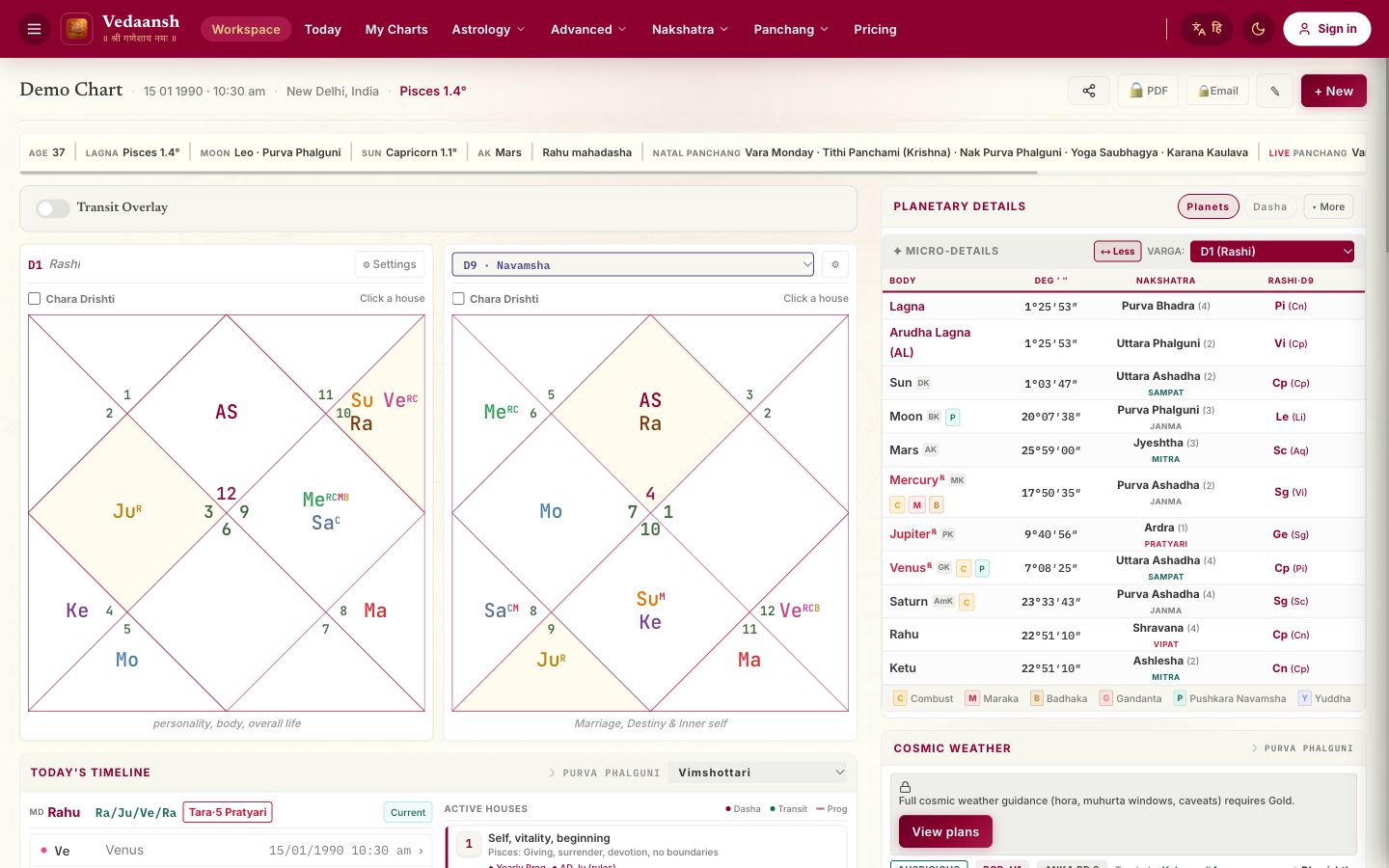
Open in Vedaansh Free18 steps
The top of the Workspace: chart name, action buttons, summary strip, D1 and D9 charts and the planet table.Open full size
Figure 1 The top of the Workspace: chart name, action buttons, summary strip, D1 and D9 charts and the planet table.

Screenshots use a sample chart (15 Jan 1990, 10:30 am, New Delhi). Your screen shows your own chart.

How the screen is laid out

The Workspace opens whenever a chart is loaded. Read it from top to bottom:

  1. Chart header: name, birth date and time, place and Lagna degree, with the action buttons on the right.
  2. Summary strip: the key facts of the chart on one line.
  3. Transit Overlay: a switch that puts today's planets on your chart.
  4. Two charts side by side: D1 (Rashi) on the left and a divisional chart (D9 to start) on the right.
  5. Planetary Details on the right: the planet table, with Dasha and More tabs.
  6. Today's Timeline: the running dasha, the houses active now and a short dasha reading.
  7. Below that: Astronomical Details, Cosmic Weather, strength panels, yogas, doshas, panchang, current transits, divisional charts and remedies.
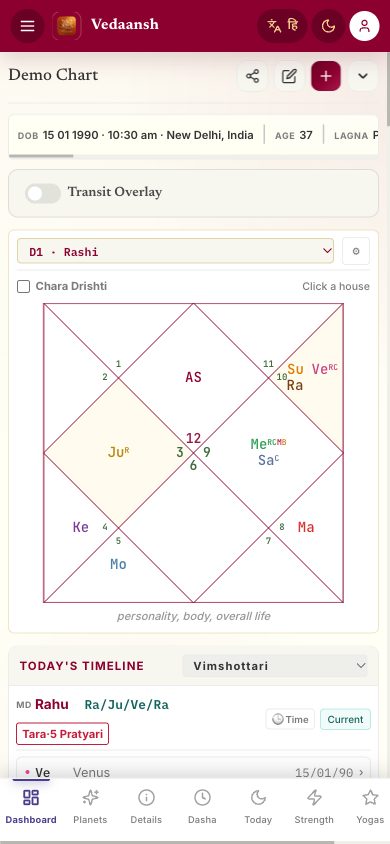
The Workspace on a phone, with the section tabs at the bottom.Open full size
Figure 2 The Workspace on a phone, with the section tabs at the bottom.

Buttons at the top right

  1. Share icon: copies a free link to this chart. Anyone can open it without logging in.
  2. PDF (Gold): downloads the full chart report.
  3. ✦ AI prompt: copies the whole chart as a prompt for ChatGPT, Claude or Gemini. Pick focus topics such as personality, career or marriage first.
  4. Email (Platinum): sends the report to a client.
  5. ✎ Edit: reopens the birth form so you can correct the time or place. The chart recalculates when you save.
  6. + New: starts a fresh chart.
  7. When signed in you also see + Save (or Update for a saved chart) and a link to My Charts.

The summary strip

One line under the header with the essentials: Age, Lagna sign and degree, Moon sign and nakshatra, Sun sign and degree, AK (Atmakaraka), the running mahadasha, the Natal Panchang of your birth moment, and the Live Panchang of right now. On narrow screens, swipe it sideways to see everything.

On a phone

  1. Only one chart shows at a time. Use the drop-down above it to switch between D1, D9 or any other divisional chart.
  2. The share, edit and + buttons sit next to the chart name. The ⌄ button opens the rest (save, My Charts).
  3. A tab bar at the bottom jumps between sections: Dashboard, Planets, Details, Dasha, Today, Strength, Yogas and Insights. Swipe it for more tabs.
  4. In Today's Timeline, tap Time to show the exact start time of each period.

Tips

  • Every page in the Astrology and Advanced menus reads the chart open here. Load the right chart first, then explore.
  • The pages that follow in this section explain each part in detail.
PreviousCreating an account and signing inNext Reading the charts

On this page

  1. How the screen is laid out
  2. Buttons at the top right
  3. The summary strip
  4. On a phone
  5. Tips